

Team & Contributors
Add and remove project managers, and track contributor activity
Every project has a team (owner and managers who administer it) and contributors (community members who commit to tasks and submit work). This guide covers managing both from the admin side.
Permissions
Only the project owner can add or remove managers. Everything else is shared.
| Action | Owner | Manager |
|---|---|---|
| Create, edit, delete draft tasks | Yes | Yes |
| Publish/remove tasks (treasury) | Yes | Yes |
| Review submissions (accept/refuse/deny) | Yes | Yes |
| View reports and export | Yes | Yes |
| Add/remove managers | Yes | No |
| Edit project settings | Yes | Yes |
Team Overview
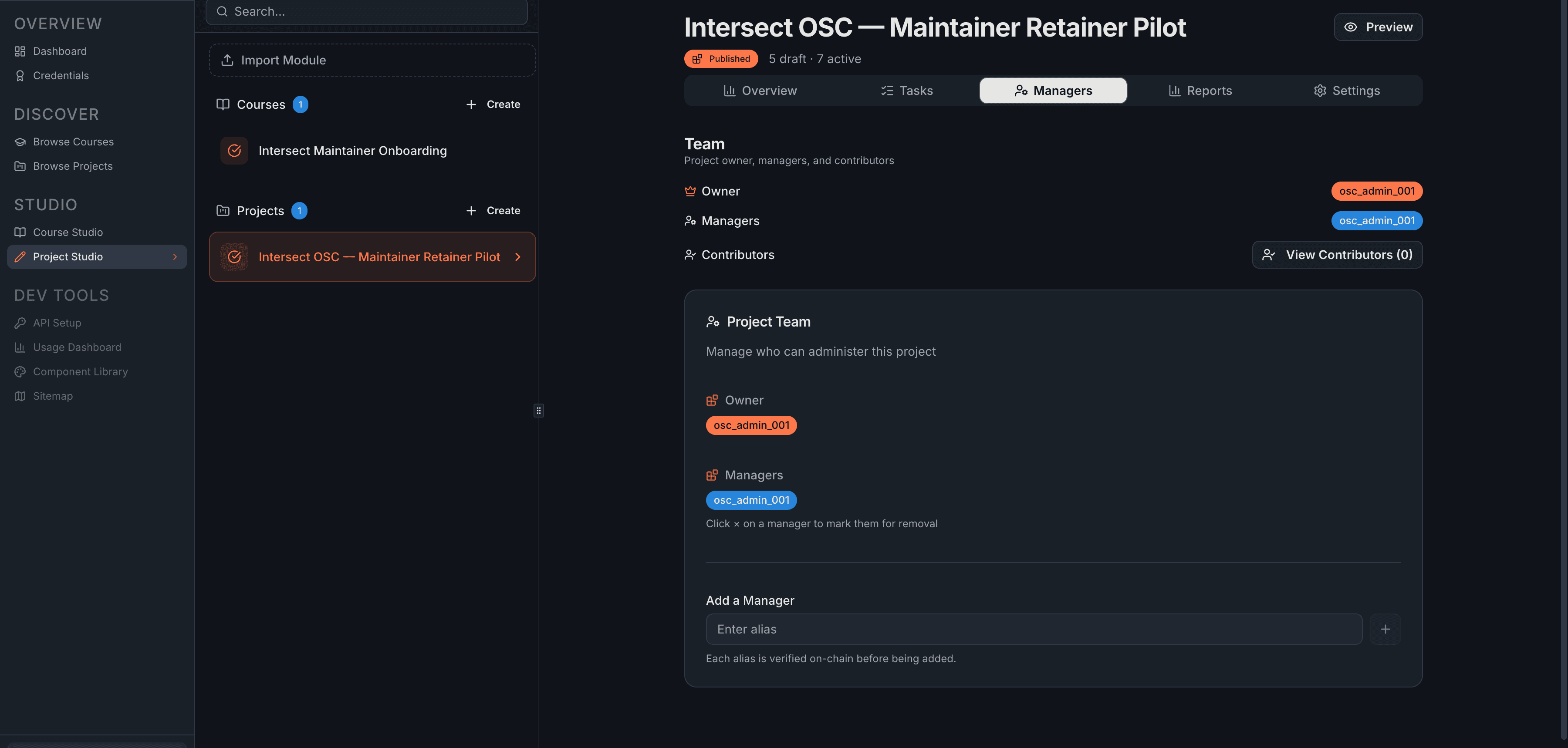
The Managers tab shows the current team at the top of the page: the owner (permanent, shown as a badge), the list of managers, and the total contributor count with a View Contributors link.
Adding a Manager
Owner only. The alias is validated against the blockchain before the transaction is submitted.
1. Enter the alias
Type the manager's on-chain alias in the Add a Manager field.
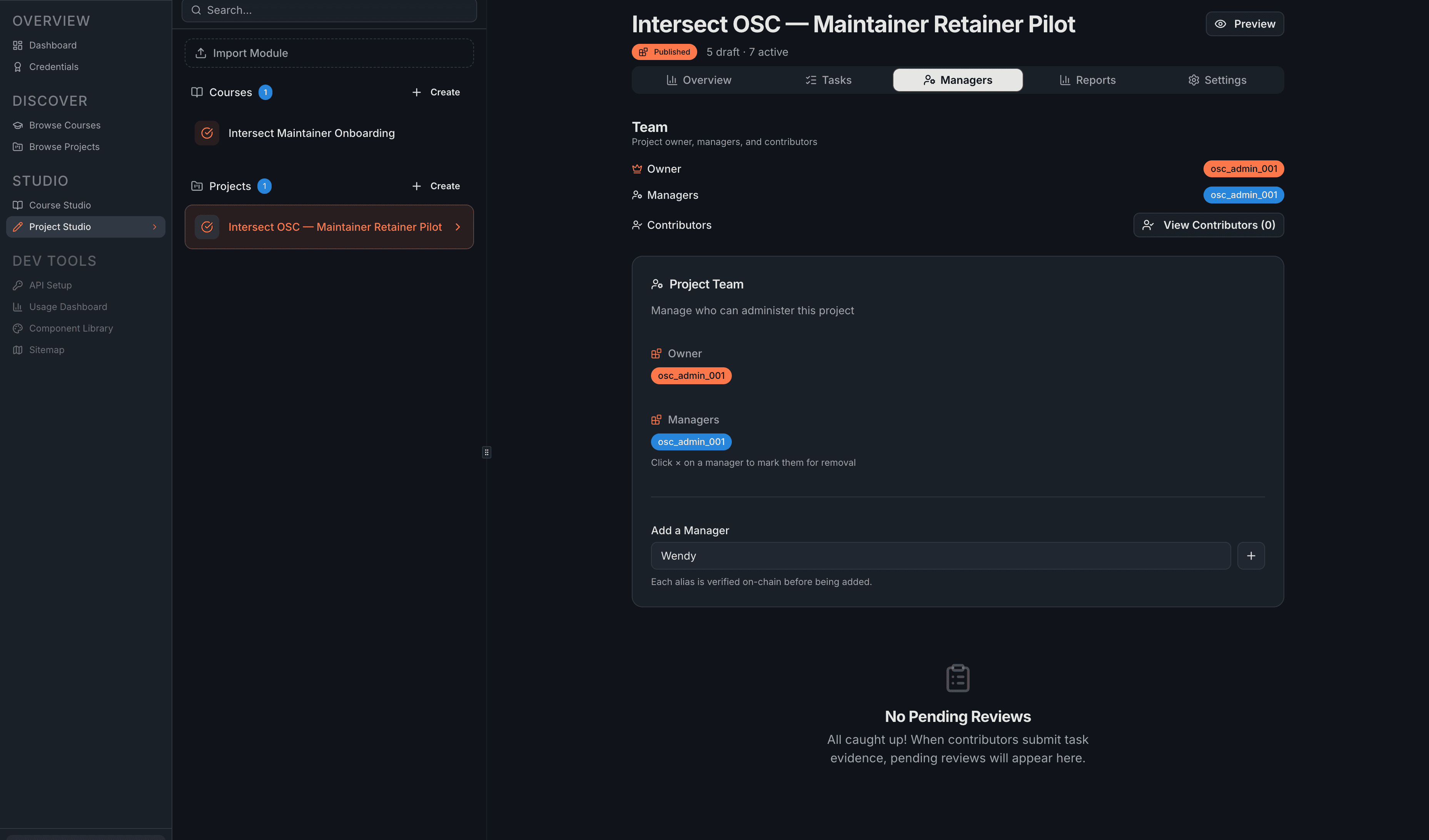
2. Review pending changes
The alias appears in an Adding section below the current managers. A Pending Changes summary shows the transaction cost.
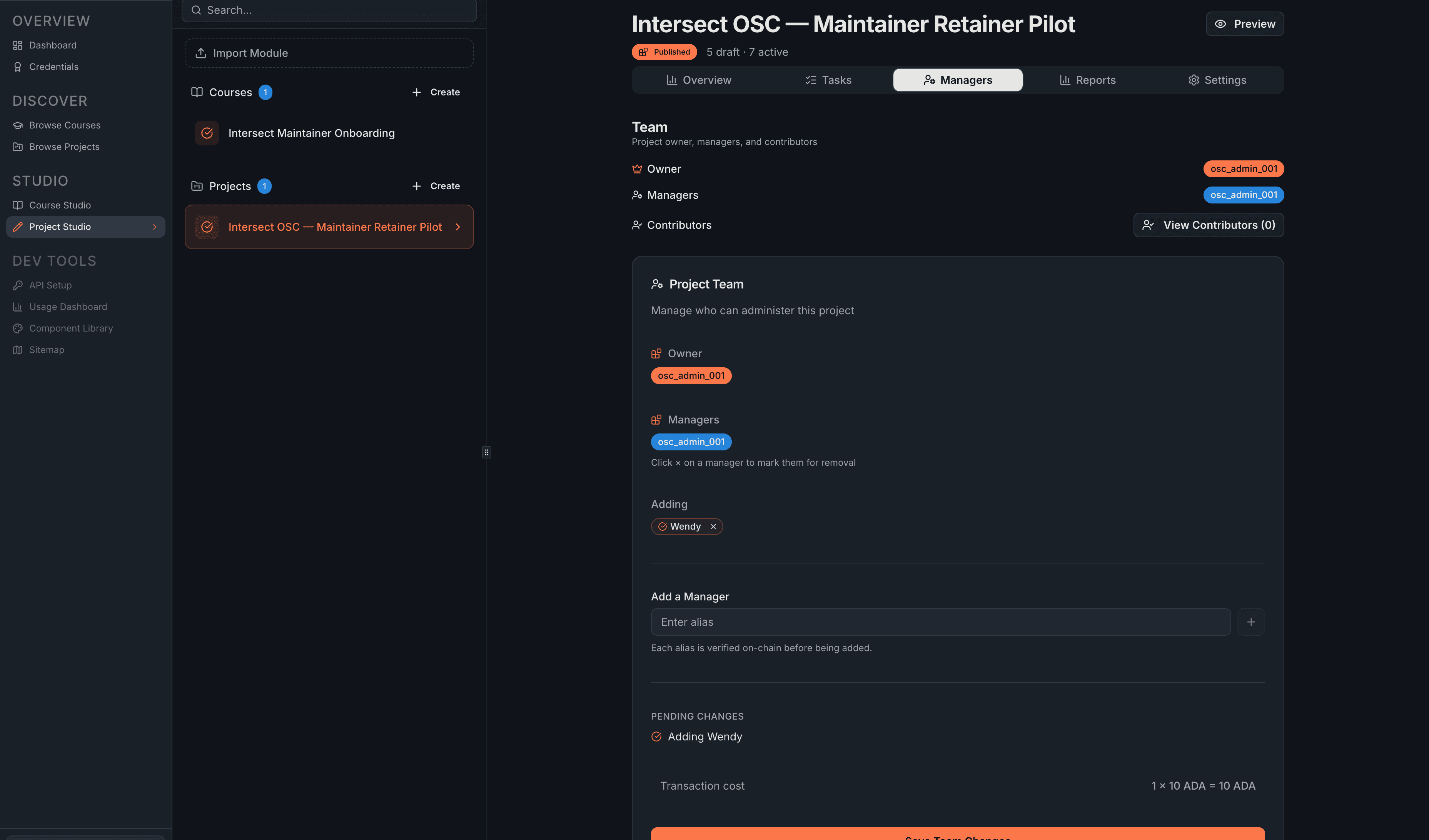
You can queue multiple additions (and removals) before submitting to batch them into a single transaction.
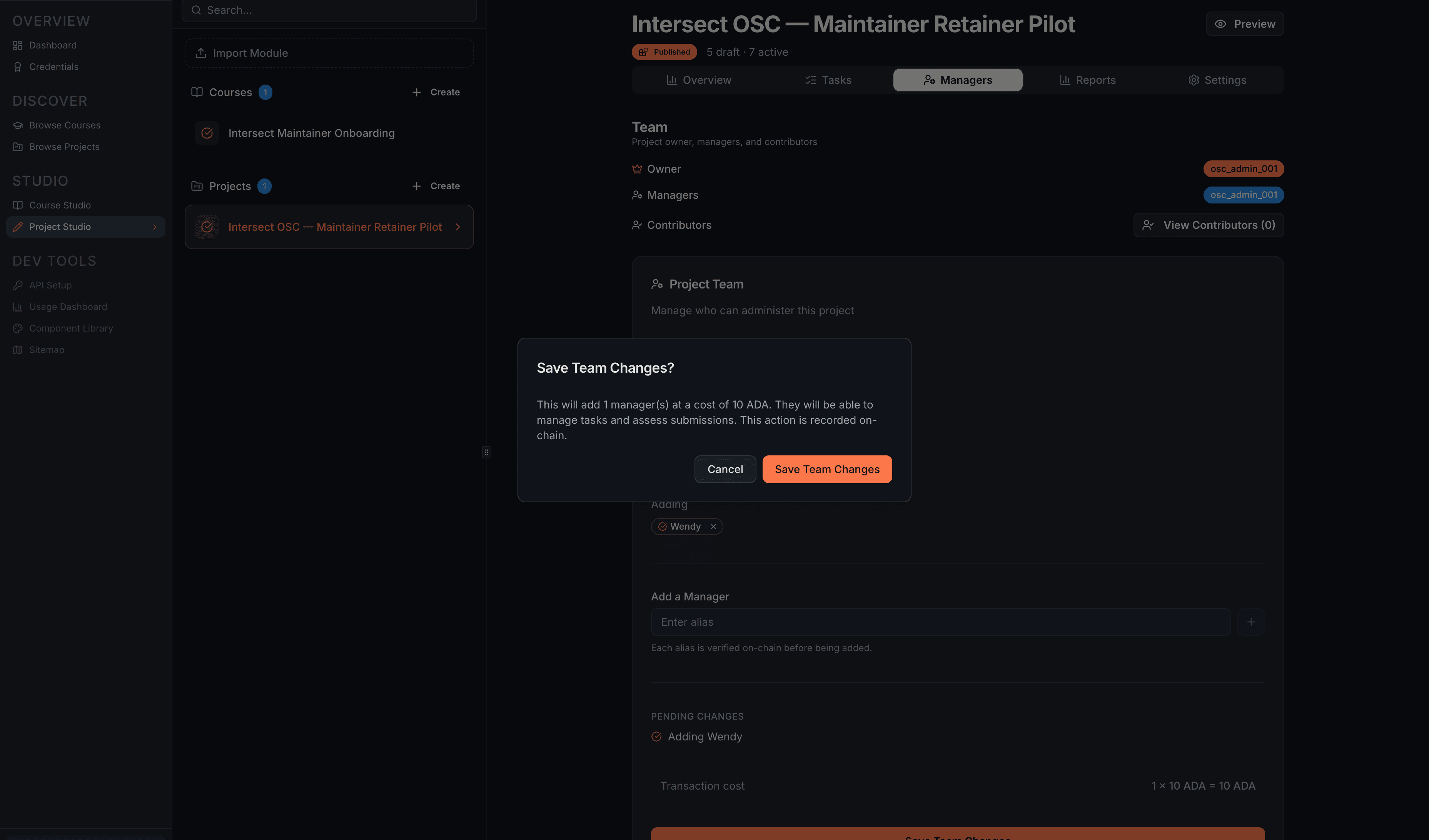
3. Submit
Click Save Team Changes to execute the on-chain transaction. After confirmation, the new manager can connect their wallet and access all manager-level features.
Removing a Manager
Owner only. Click the x on a manager's badge to queue them for removal, review the pending changes, and click Save Team Changes.
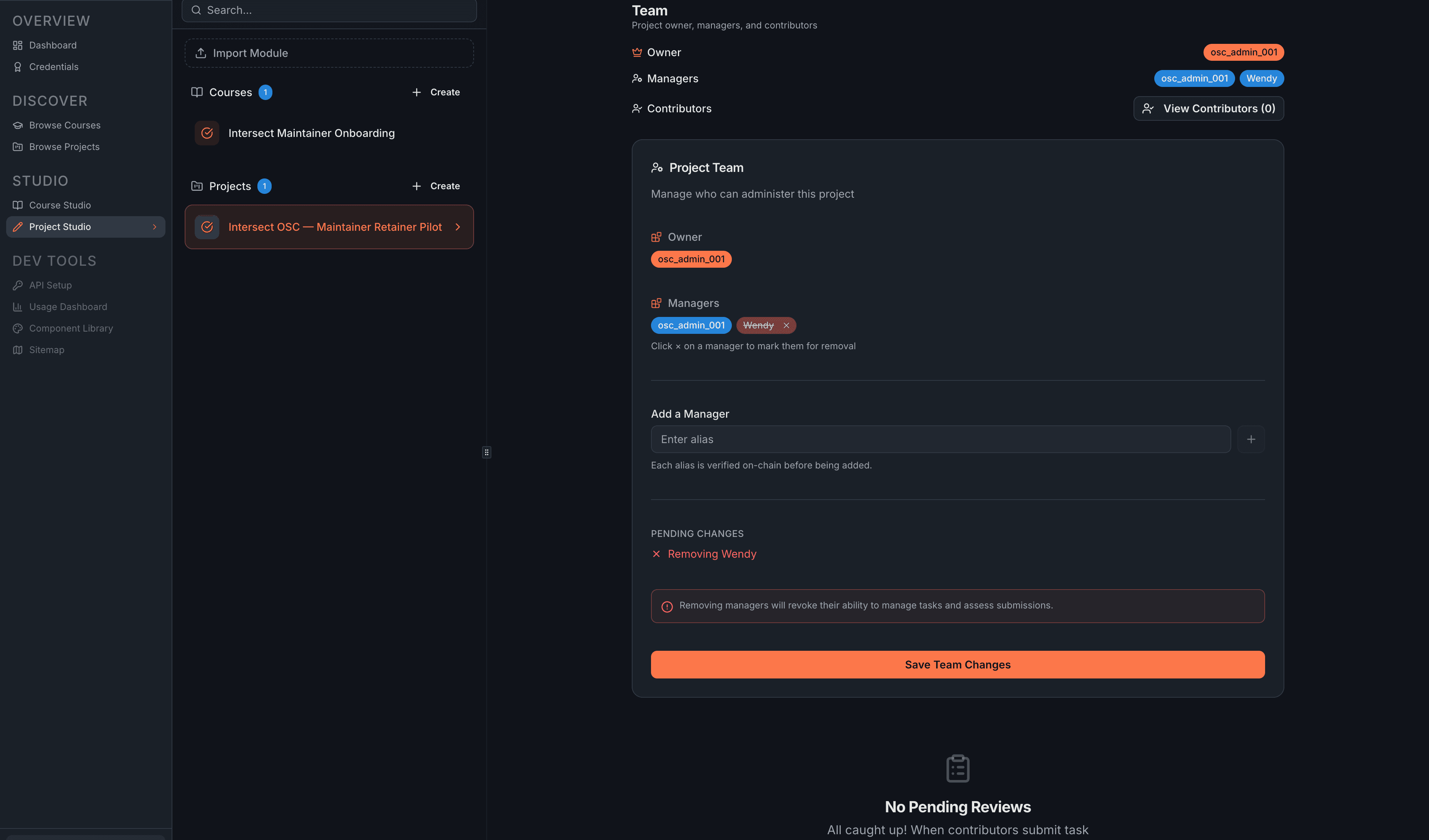
After confirmation, the removed manager loses access to all manager-level features.
If you enter an alias that isn't registered on-chain, the system won't accept it. The person needs to create an Andamio account and register their alias first.
Viewing Contributors
The Contributors page is a read-only view of all registered contributors and their activity. Access it from the Managers tab by clicking View Contributors.
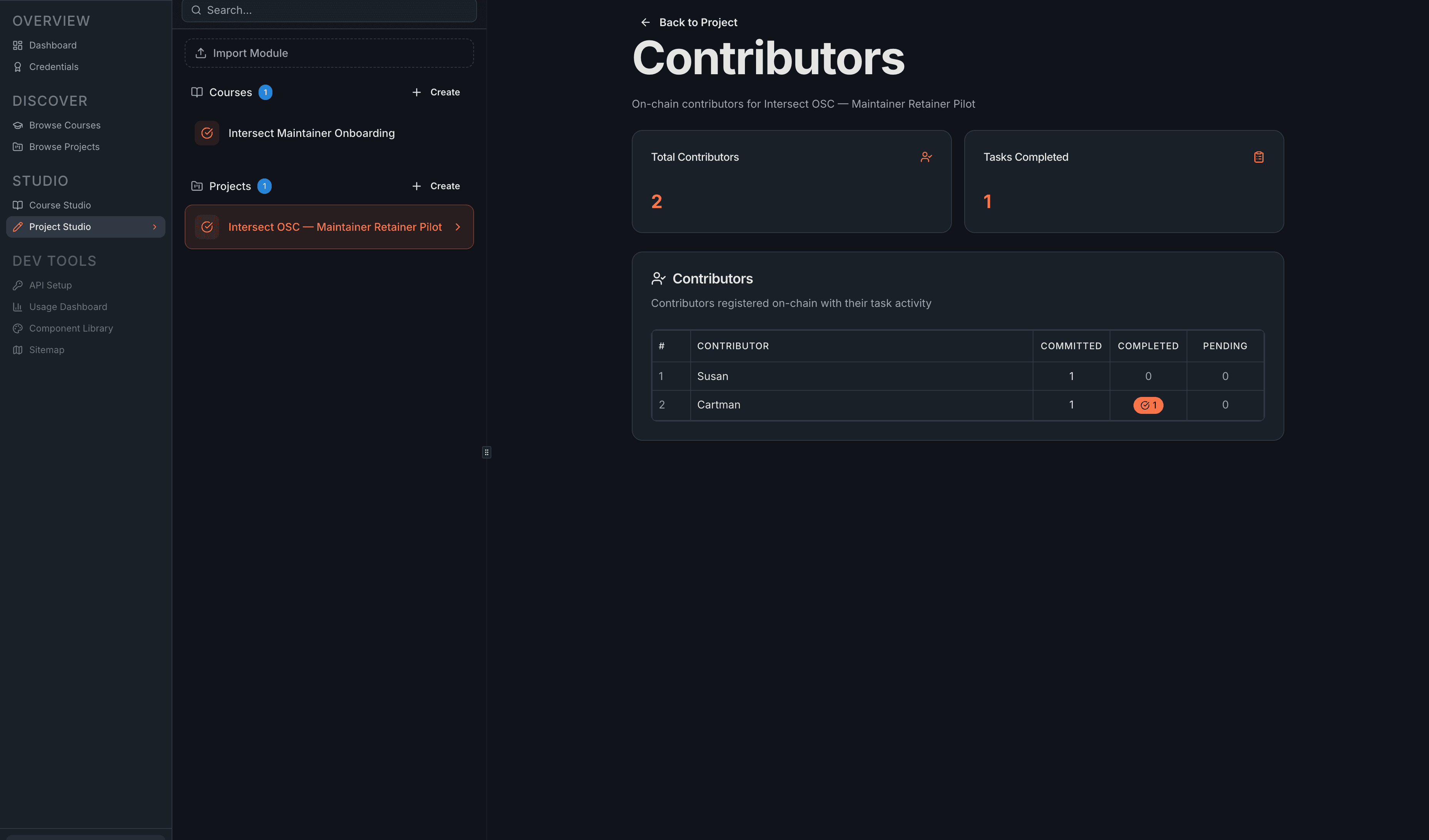
The table shows each contributor's alias, total commitments, completed (accepted) submissions, and pending (awaiting review) submissions — ranked by activity.
This view helps you spot:
- Most active contributors — highest completed count
- Work waiting on you — contributors with pending submissions need review (see Assessment Workflow)
- Follow-through rates — compare committed vs. completed
- For financial details per contributor, use the Reports tab
What's Next
- Assessment Workflow — review the submissions your contributors are sending
- Reports — financial breakdown per contributor
Related
- Manage Managers Transaction — on-chain reference for adding and removing managers