

Project Studio Quickstart
Navigate the Project Studio admin workspace — tabs, components, and where to find every admin action
Project Studio is the admin workspace for managing an Andamio project. This is where you create tasks, fund the treasury, review contributor submissions, manage your team, and generate reports. Every other guide in this series assumes you've read this one first.
Who can access it
Project Studio is visible only to project owners and project managers. Access is role-gated via your Andamio Access Token:
- Owner — the user who created the project. Full access to all features, including adding and removing managers.
- Manager — granted access by the owner. Can manage tasks, treasury, assessments, and settings, but cannot modify the team roster.
If you don't see Project Studio in the sidebar, confirm that your wallet is connected with an account that has an owner or manager role for the project.
How to get here
Click Project Studio in the sidebar under the Studio section, then select your project. You can also navigate directly to /studio/project/[id] if you know the project ID.
Overview Tab
The Overview tab is the first thing you see when you open a project. It gives you a snapshot of the project's current state.
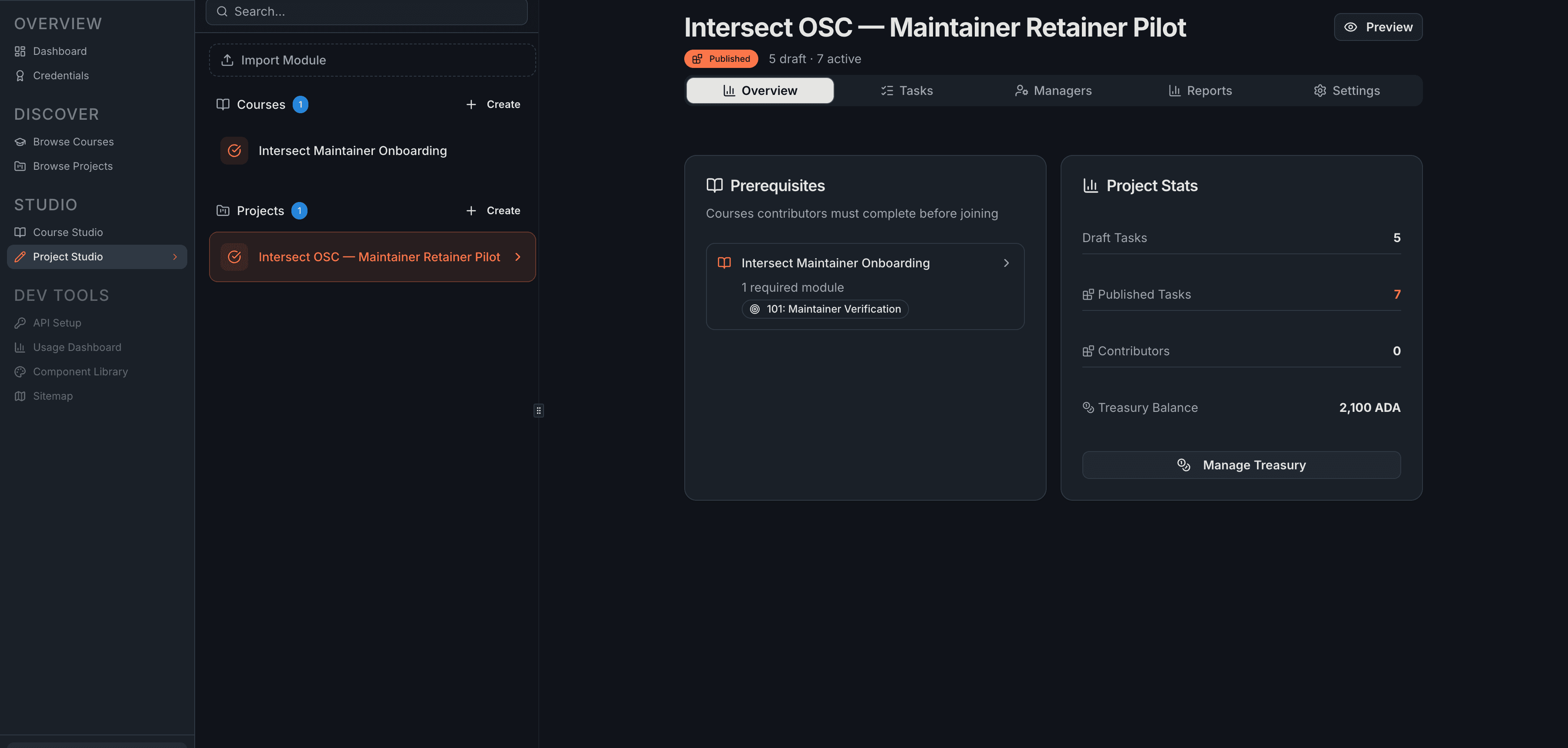
The left side shows Prerequisites — the courses contributors must complete before joining. The right side shows four stats: Draft Tasks, Published Tasks, Contributors, and Treasury Balance.
Below the stats, the Manage Treasury button is the main entry point for funding operations — depositing ADA, publishing draft tasks on-chain, and removing tasks to reclaim funds.
Tab Tour
The tab bar gives you access to all admin features.

| Tab | What you do here |
|---|---|
| Overview | Check project stats, prerequisites, and access treasury management |
| Tasks | Create, edit, and monitor tasks across their lifecycle |
| Managers | Review contributor submissions, manage team members |
| Reports | Treasury reporting, KPI cards, CSV/PDF export |
| Settings | Edit project metadata, view the on-chain Project ID |
The project header above the tabs shows the project title, a Published status badge, and summary counts (e.g., "5 draft · 7 active"). The Preview button opens the public-facing project page as contributors see it.
Settings Tab
The Settings tab lets you edit project metadata and view the on-chain identifier.
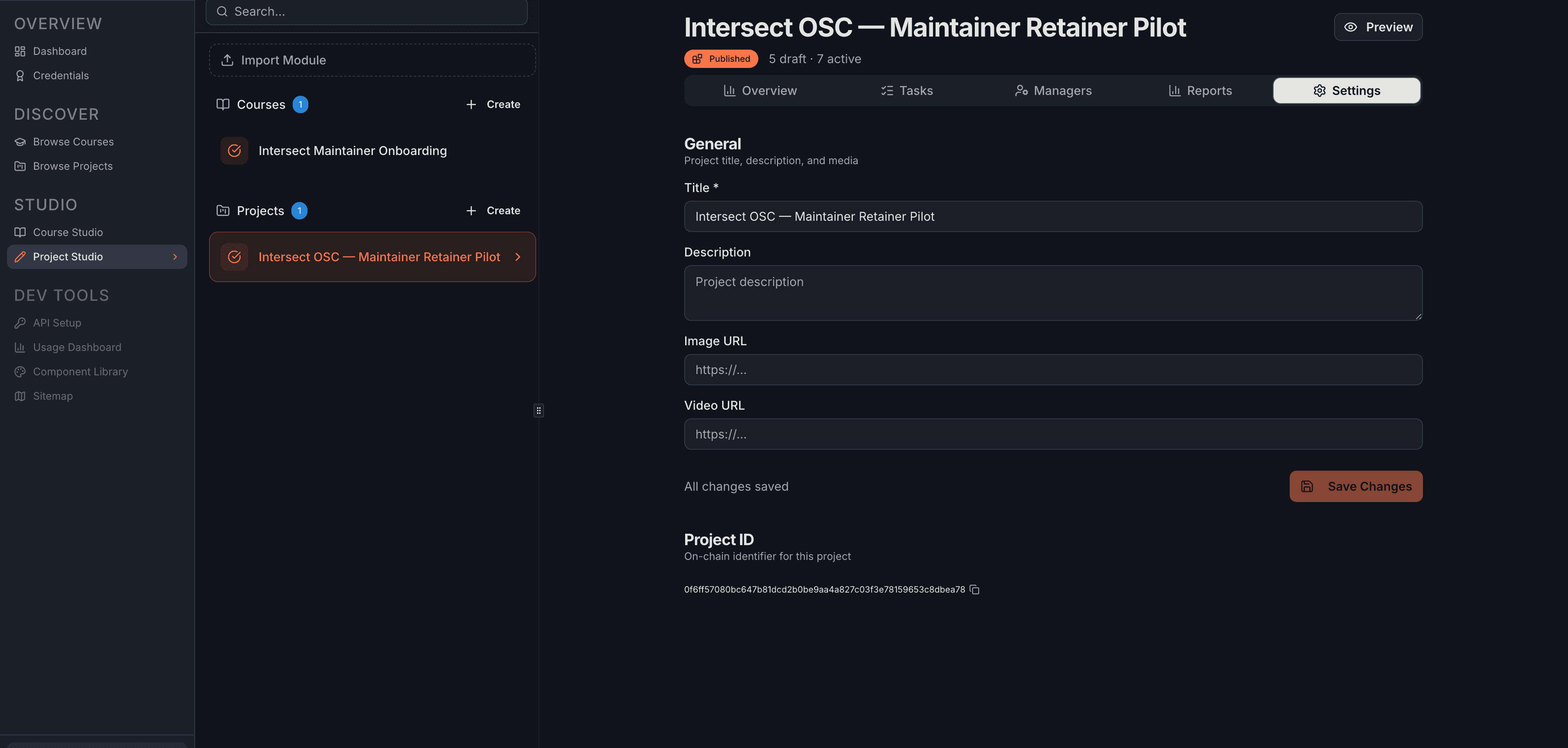
You can change the Title, Description, Image URL, and Video URL at any time — click Save Changes when done. The page shows "All changes saved" when the current state matches what's stored.
The Project ID at the bottom is read-only — a long hexadecimal string that identifies this project on the Cardano blockchain. Click the copy icon to grab it for use in external tools, reports, or blockchain explorers.
Where Do I Go?
| I want to... | Go to... | Guide |
|---|---|---|
| Create a new task | Tasks tab → Create Task | Task Management |
| Edit a draft task | Tasks tab → click edit icon on draft row | Task Management |
| Fund the treasury and publish tasks | Overview → Manage Treasury | Treasury Management |
| Review a contributor's submission | Managers tab → Open Full Review Page | Assessment Workflow |
| See contributor activity | Managers tab → View Contributors | Team & Contributors |
| Add or remove a team manager | Managers tab (owner only) | Team & Contributors |
| Export a financial report | Reports tab → Download CSV or Download PDF | Reports |
| Change project title or description | Settings tab | This guide (see Settings above) |