

Assessment Workflow
Review contributor submissions and make accept, refuse, or deny decisions
When contributors submit evidence for a task, you review it and make an on-chain decision: Accept, Refuse, or Deny. Accept distributes the reward automatically. Refuse lets the contributor try again. Deny is permanent. Because these decisions are recorded on-chain and most are irreversible, take your time reading the evidence.
This is the most frequent admin action during active projects.
Finding Pending Submissions
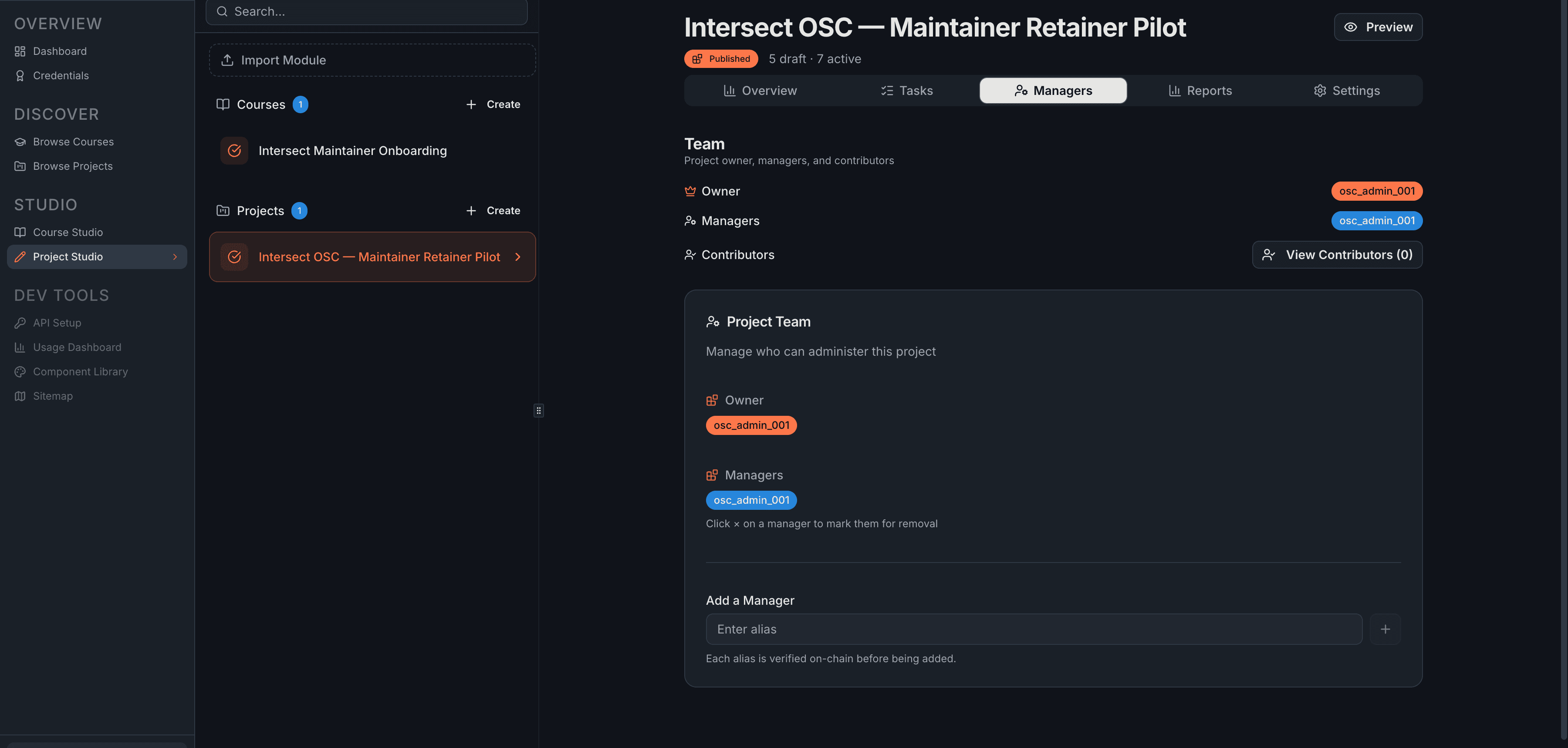
Pending submissions show up in three places:
- Managers tab — shows the pending count and an inline queue
- Tasks tab — a "Review Submissions" button appears when pending count > 0
- Dashboard — pending assessment count per project
Start from the Managers tab and click Open Full Review Page to enter the review interface.
The Review Page
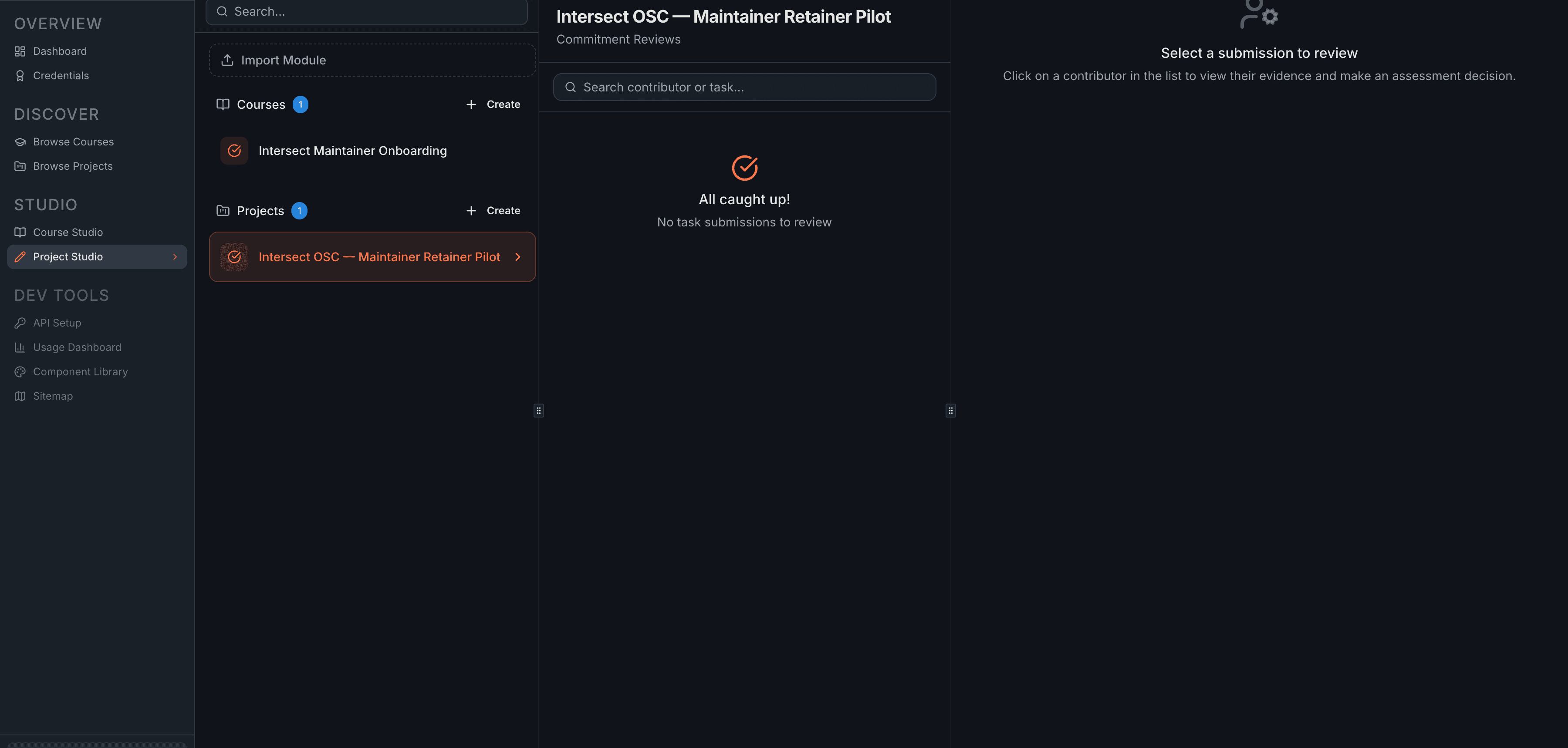
The Commitment Reviews page uses a two-panel layout.
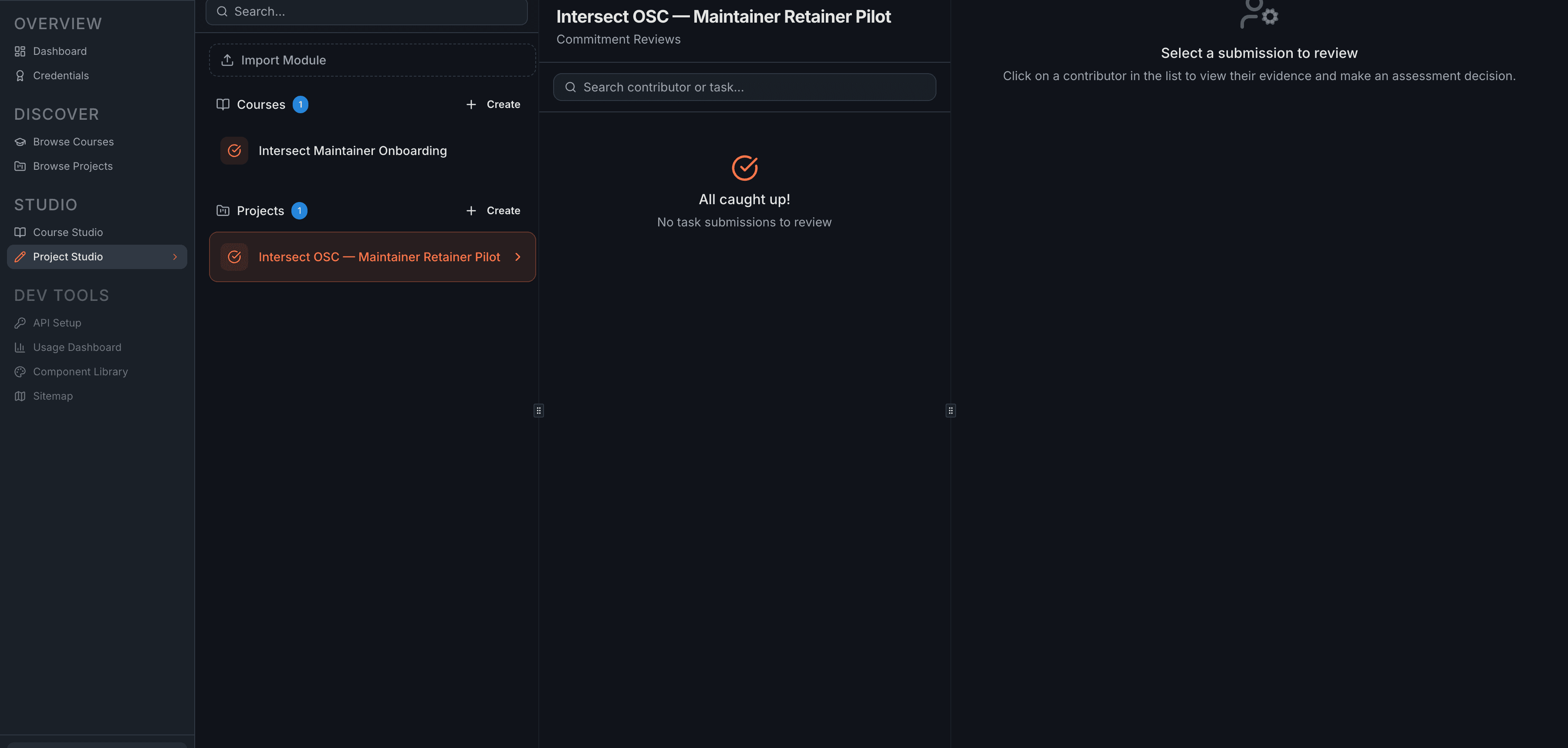
Left panel — a scrollable list of all commitments. Each entry shows the contributor's alias, task title, reward amount, and a status badge: blue (SUBMITTED — needs your review), green (ACCEPTED), or red (REFUSED / DENIED). Use the search bar to filter by contributor alias or task title.
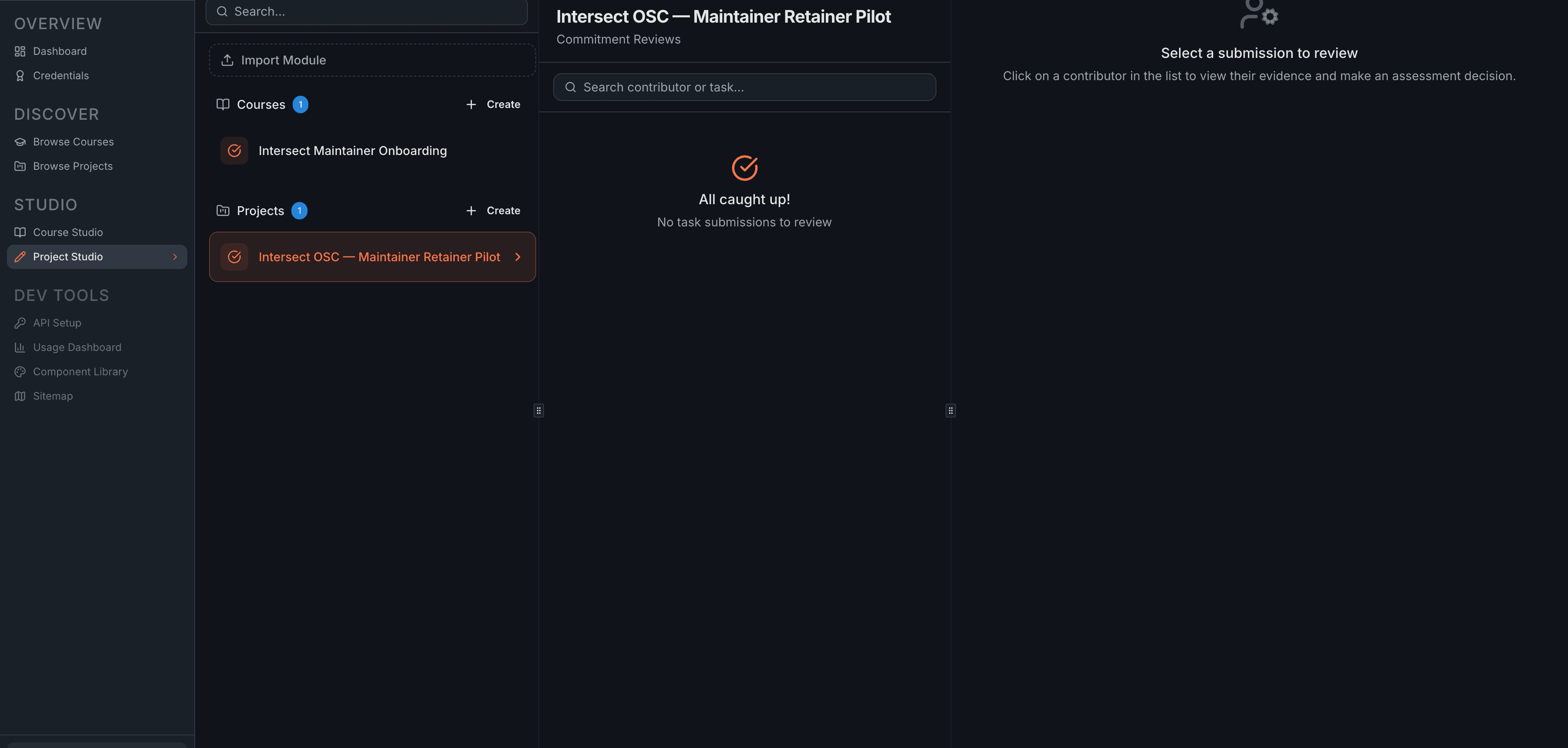
Right panel — when you click a submission, the detail view shows the contributor's alias, the reward amount, expiration date, submission TX hash, and the submitted evidence below.
Evidence is usually rich text (headings, lists, links) submitted through the platform. If submitted directly on-chain, it appears as a hash identifier. An evidence hash is included for independent verification.
Making a Decision
At the bottom of the right panel, three buttons let you decide.
| Decision | Effect | Reversible? |
|---|---|---|
| Accept | Approves the work. Reward ADA sent to contributor automatically. | No |
| Refuse | Sends back for revision. Contributor can resubmit new evidence. | Contributor gets another chance |
| Deny | Permanently rejects the submission. Contributor's commitment is closed. | No — only available after the task's expiration date |
When you click a decision button, a confirmation dialog appears. Review your choice, then click Confirm to submit the on-chain transaction. After blockchain confirmation, a "Next pending" button appears to auto-navigate to the next unreviewed submission.
Accept and Deny are irreversible on-chain decisions. The confirmation dialog is your last chance to reconsider.
When to use each
- Accept when the evidence reasonably meets the task requirements.
- Refuse when the submission needs work. Communicate what to improve through a separate channel (Discord, email) — the platform doesn't have inline feedback on refusals.
- Deny only for clear violations (spam, plagiarism, completely off-topic). It permanently closes the submission and is deliberately gated behind the expiration date to prevent premature permanent rejection.
Processing the Queue
The efficient routine:
- Open the Commitment Reviews page from the Managers tab
- Click the first blue SUBMITTED badge in the left panel
- Read the evidence in the right panel
- Make your decision → confirm → wait for TX confirmation
- Click "Next pending" to move to the next item
- Repeat until the page shows "All caught up!"
After a Decision
- Accept → reward is distributed automatically. Verify the payout on the Reports tab.
- Refuse → the contributor can resubmit. Watch for the resubmission in your pending queue.
- Deny → the commitment is permanently closed. The locked ADA stays in the treasury — reclaim it by removing the task through Treasury Management.
What's Next
- Task Management — create and publish the tasks that generate submissions
- Team & Contributors — manage your team and track contributor activity
Related
- Assess Tasks Transaction — on-chain reference for assessment decisions