

Task Management
Create tasks with ADA rewards, publish them on-chain, and track contributor progress
Every task on Andamio is a piece of work with an ADA reward attached. You create tasks as drafts, publish them on-chain (which locks the reward ADA in the treasury), and contributors commit to them. When you accept a contributor's submission, the reward is distributed automatically.
A task moves through these states:
Draft → Available → In Progress → Pending Review → Accepted / Refused / Denied
You manage drafts and live tasks from the Tasks tab. Publishing happens through the Treasury Management page. Reviewing submissions happens through the Assessment Workflow.
Creating a Task
From the Tasks tab, click Create Task.
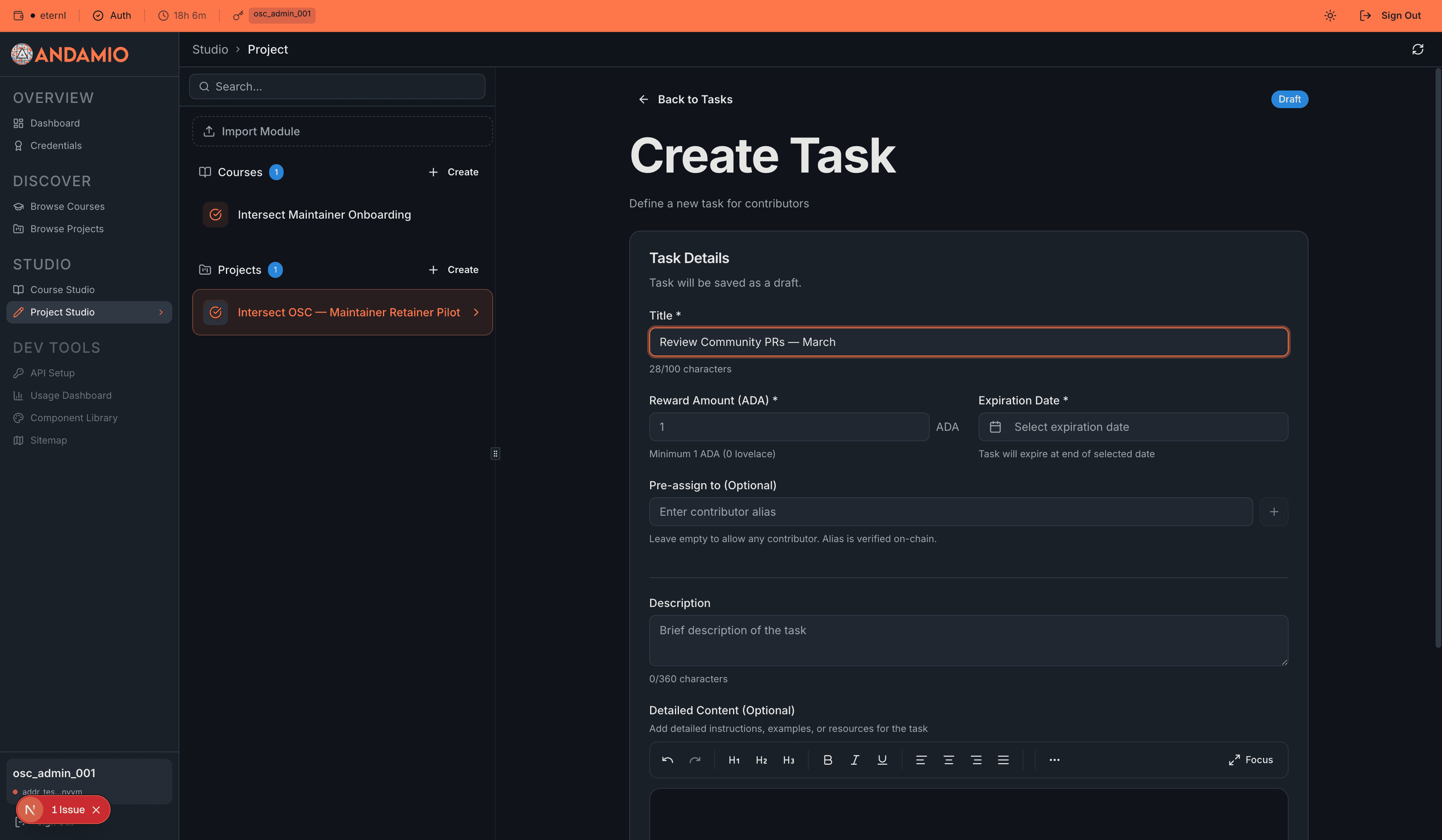
Fill in the required fields:
- Title — what contributors see in the task list. Max 100 characters (140 on-chain).
- Reward Amount — the ADA locked in treasury and paid on acceptance. Minimum 1 ADA.
- Expiration Date — after this date, no new commitments are accepted and Deny becomes available for existing submissions.
Optional fields:
- Description — a short summary visible in listings.
- Detailed Content — the full task brief. The rich text editor supports headings, lists, and links. Use it to spell out deliverables and what evidence to submit.
- Pre-assigned Alias — targets the task to one specific contributor. Leave empty to open it to anyone who meets the project prerequisites.
Click Save Changes to save the draft.
Managing Drafts
The Tasks tab shows your draft and live tasks in two separate tables. Drafts have an orange DRAFT badge.
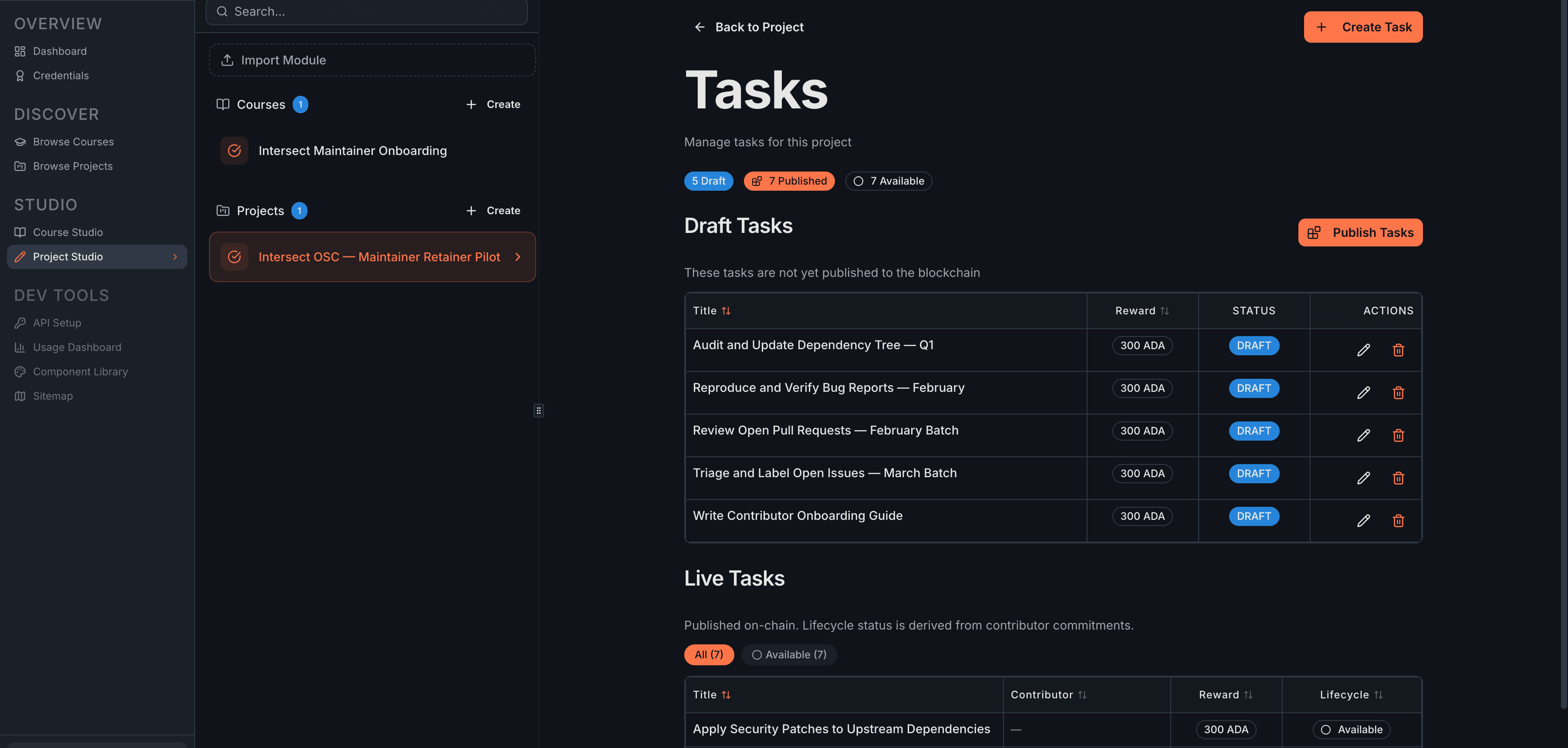
You can edit (pencil icon) or delete (trash icon) any draft. Deleting is permanent.
Once a task is published on-chain, it cannot be edited. Review your task content carefully while it's still a draft.
The stats row at the top shows counts for Draft Tasks, Live Tasks, and On-Chain Tasks (all-time published). Filter chips above the tables let you narrow the view by status.

Publishing Tasks On-Chain
Publishing moves drafts on-chain, locks their reward ADA in the treasury, and makes them available to contributors. The full publishing flow is covered in the Treasury Management guide, but here's the short version:
- Click Manage Treasury (from the Overview tab or Tasks tab)
- Switch to the Add to Treasury tab
- Select the drafts you want to publish
- Review the Transaction Summary — it shows total rewards, treasury balance, and any additional ADA needed from your wallet
- Click Publish Tasks and sign the transaction
After blockchain confirmation, the tasks become Available and contributors who meet the project prerequisites can commit to them.
Task Lifecycle
Once published, tasks move through states based on contributor and manager actions.
| State | What's happening | What happens next |
|---|---|---|
| Draft | Created in the platform. Editable. | Publish via Treasury Management → Available |
| Available | Live on-chain, open for contributors | Contributor commits → In Progress |
| In Progress | A contributor is working on it | Contributor submits evidence → Pending Review |
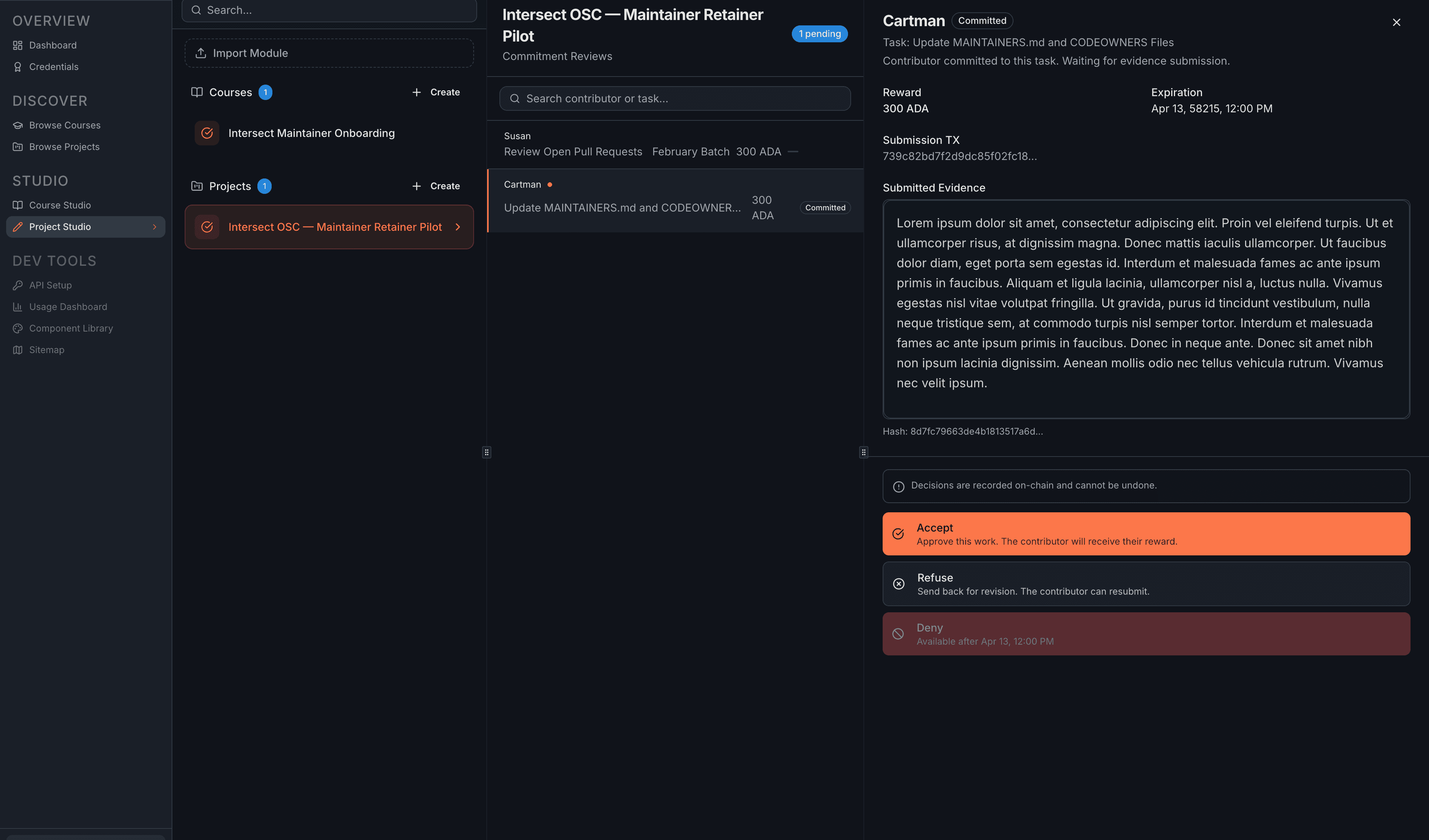
| Pending Review | Submission received, waiting for you | You accept, refuse, or deny |
| Accepted | Work approved, reward sent to contributor | Done |
| Refused | Sent back for revision | Contributor resubmits → Pending Review |
| Denied | Permanently rejected | Done — reward returns to treasury |
| Expired | Past expiration date, no accepted submission | Remove from treasury to reclaim ADA |
| Cancelled | Removed from treasury by admin | Done — ADA returned |
Three things to know about these decisions:
Accept is irreversible. It triggers automatic reward distribution to the contributor's wallet.
- Refuse is recoverable — the contributor can revise and resubmit.
- Deny is irreversible and only becomes available after the task's expiration date. This prevents premature permanent rejection.
- Expired tasks still hold locked ADA in the treasury until you explicitly remove them through Treasury Management.
Monitoring Live Tasks
The bottom half of the Tasks tab shows all published tasks and their current lifecycle state.
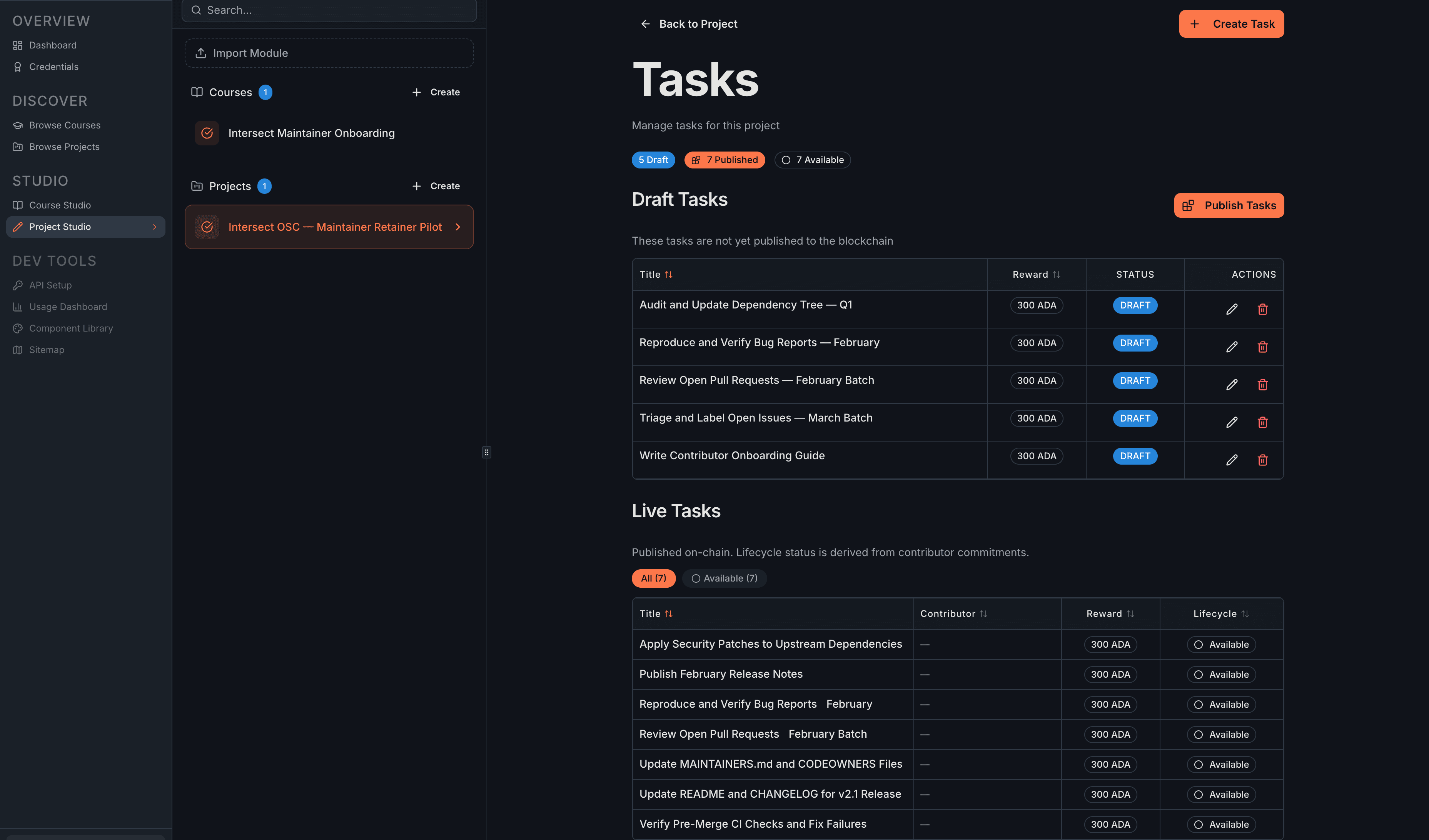
Filter by lifecycle state using the chips at the top: All, Available, In Progress, Pending Review, Accepted. Click column headers to sort.
The main thing to watch for: Pending Review badges mean a contributor is waiting on you. Click through to review their submission in the Assessment Workflow.
Expired and cancelled tasks appear in a separate "Other Tasks" section below the live table.
What's Next
- Treasury Management — fund the treasury, publish drafts on-chain, reclaim ADA from expired tasks
- Assessment Workflow — review contributor submissions and make accept/refuse/deny decisions
Related
- Manage Tasks Transaction — on-chain reference for publishing and removing tasks
- Assess Tasks Transaction — how assessment decisions are recorded on-chain